

Trace impact and paths
Light up everything an outage reaches, or every path between two Elements, with a Lens on the diagram.
Before you start
Section titled “Before you start”- You have a viewer open. See Find an Element.
1. Turn on the Impact Lens
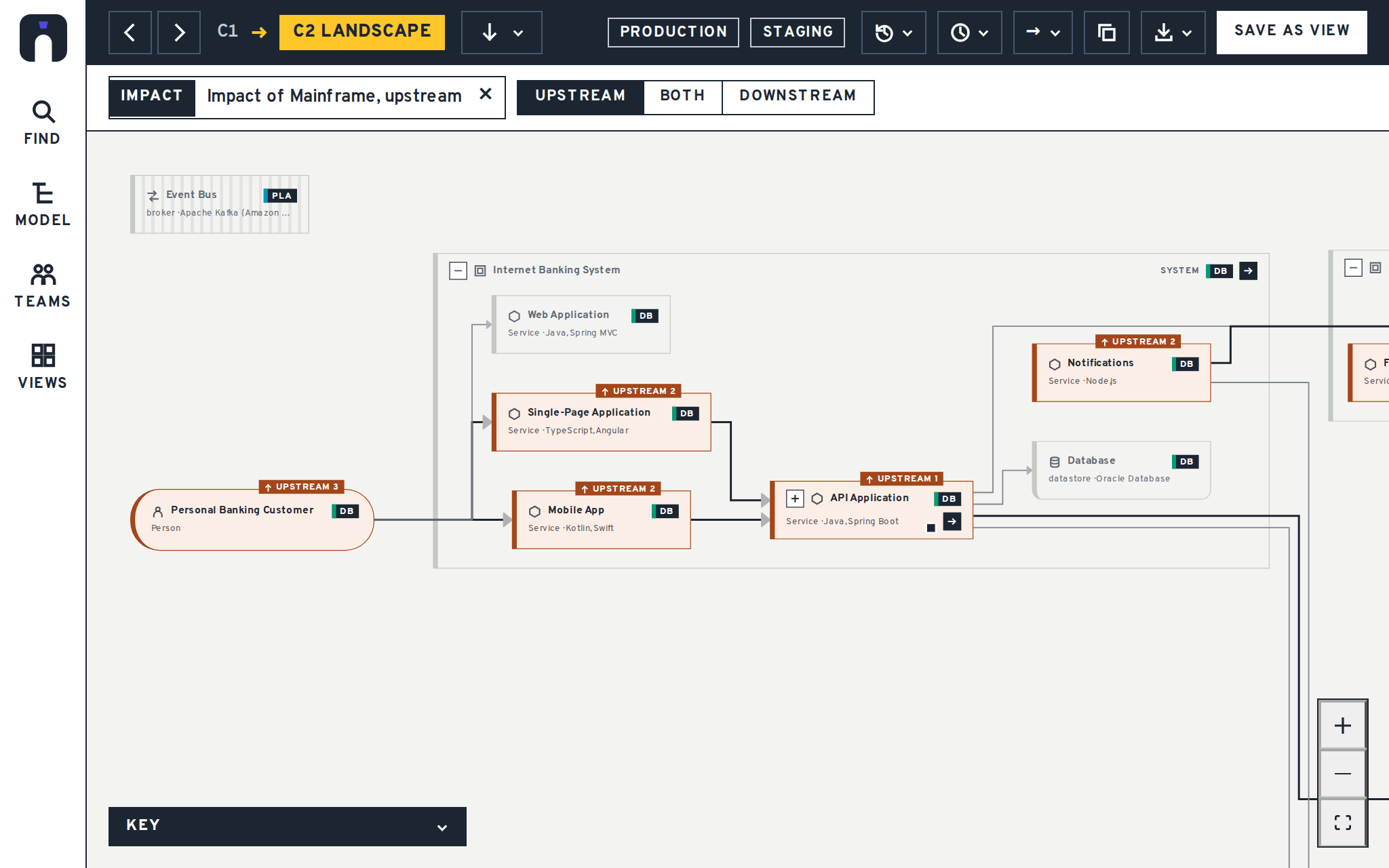
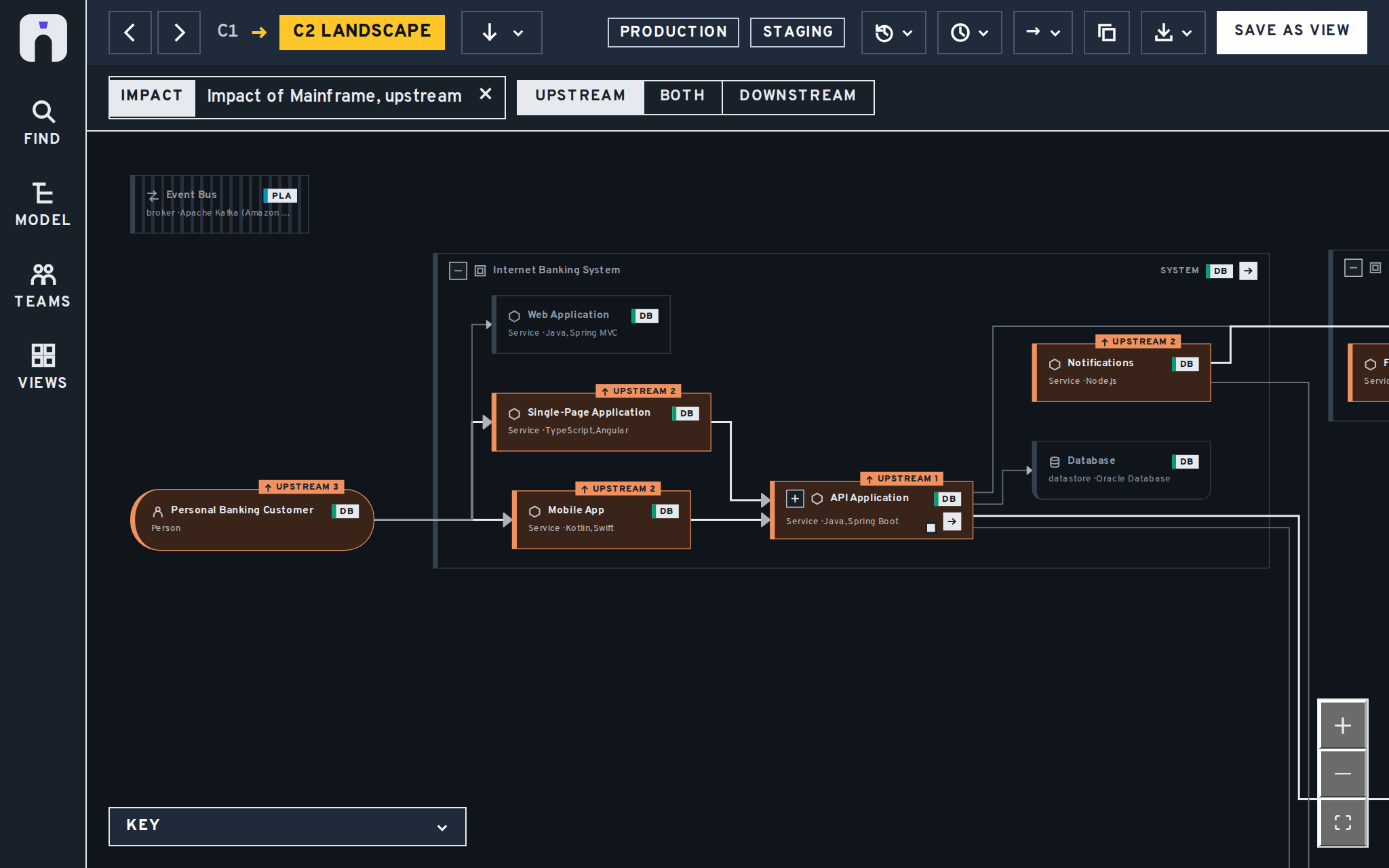
Section titled “1. Turn on the Impact Lens”Select the Element that is down, then select Upstream & downstream in its Element panel. The Impact Lens marks every Element that depends on it, or that it depends on, with how many hops away it is.
Choose a direction on the Lens’s chip. Upstream is everything that depends on the Element, so it is what an outage reaches. Downstream is what the Element depends on.
2. Connect two Elements
Section titled “2. Connect two Elements”Select the first Element, then select Connect to… in its Element panel. Select the second node on the diagram, or press / to find it. Escape cancels.
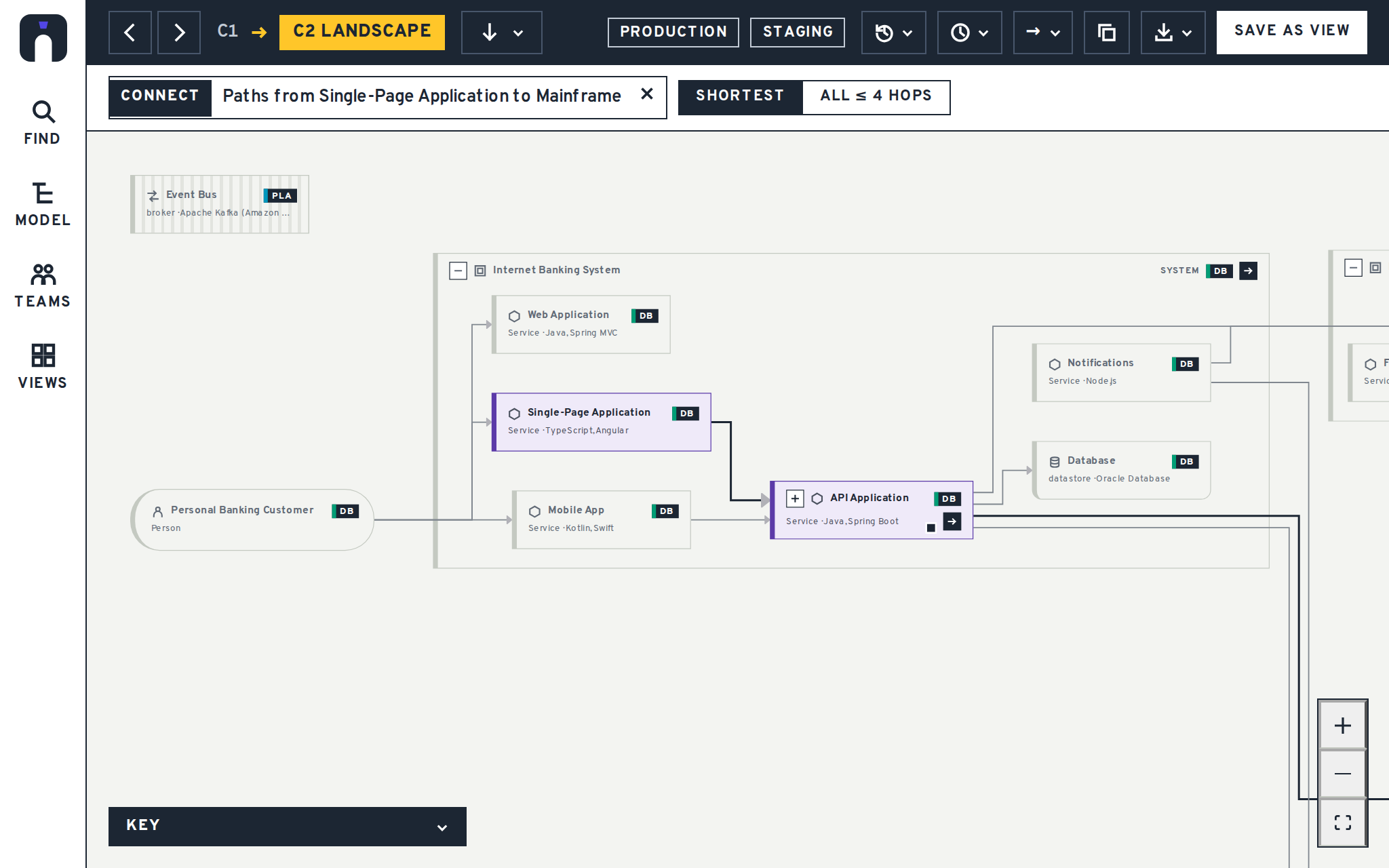
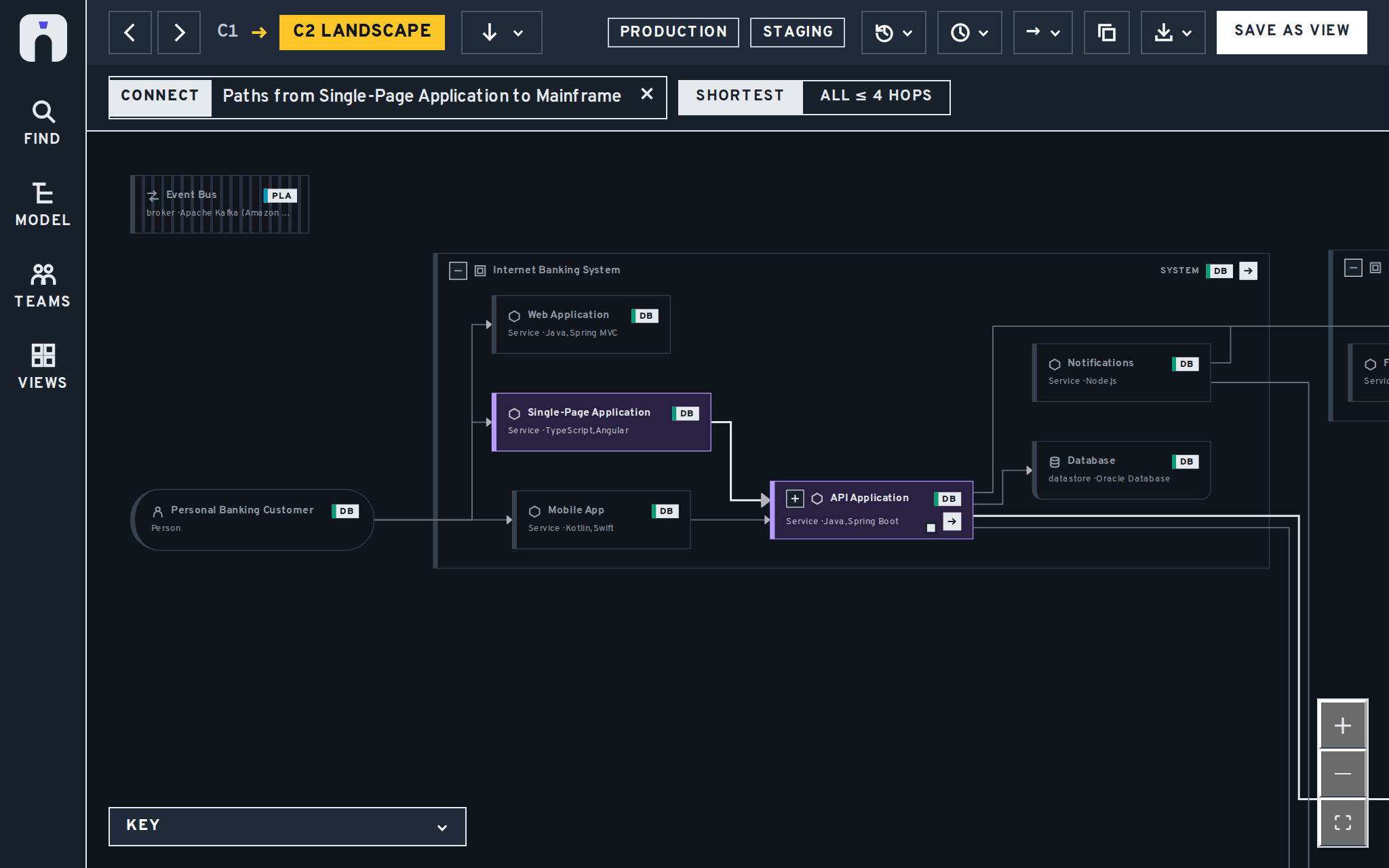
The Connect to… Lens lights the shortest paths between them, and picks every node on them. Choose All ≤ 4 hops on its chip to light every path of four hops or fewer.
3. Close the Systems off the path
Section titled “3. Close the Systems off the path”The Service Landscape opens every System, so the path lights the Services it goes through. Select the − on a System the path doesn’t touch to close it and leave more room for the path.
Check it worked
Section titled “Check it worked”The location bar shows an Impact or Connect chip that names the Elements. The address holds the Lens: impact= and way= for impact, from= and to= for a path. On the demo, everything upstream of the Mainframe ↗ is what a Mainframe outage reaches.
With an agent
Section titled “With an agent”Ask “What breaks if the Mainframe is down?”. get_impact answers it, with how far upstream each Element is.
Ask “How does the Single-Page Application reach the Mainframe?”. find_paths answers it, with each Relationship on the way.
Related
Section titled “Related”Documents Archidocs v1.4.0, the latest release.