

Share or save what's on screen
Send someone the exact screen you see, as a link, a picture or a Saved View the Project keeps.
Before you start
Section titled “Before you start”- The screen answers your question. See Find an Element and Trace impact and paths.
1. Copy the link
Section titled “1. Copy the link”Select Copy link in the location bar. The link holds everything on screen: the View, the open boxes, the selection, the Lens, the direction, the Revision and the open ADR. Anyone who opens it sees the same screen.
2. Pick the nodes you want
Section titled “2. Pick the nodes you want”To share part of a View, hold Shift and select each node. A chip counts the picks:
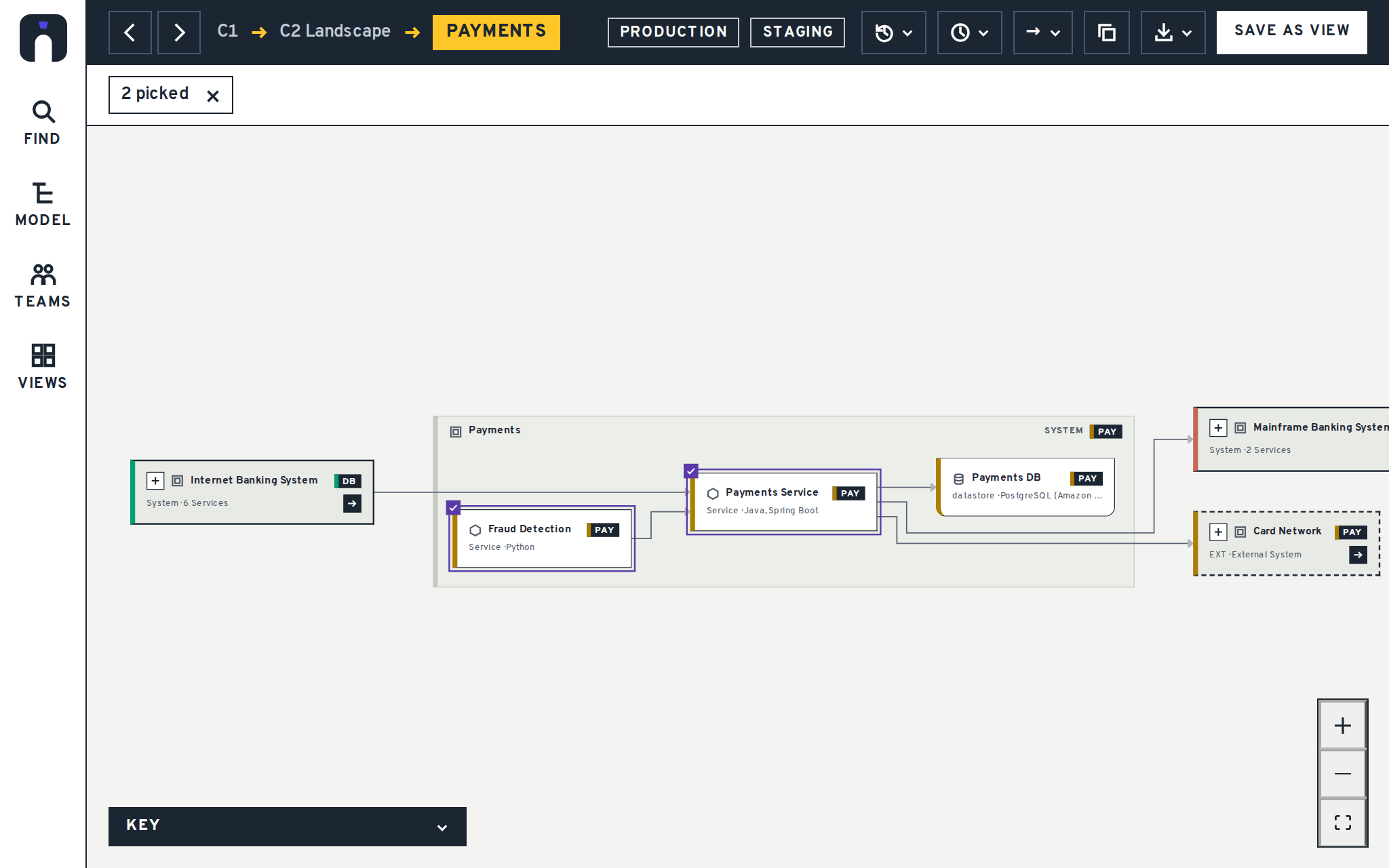
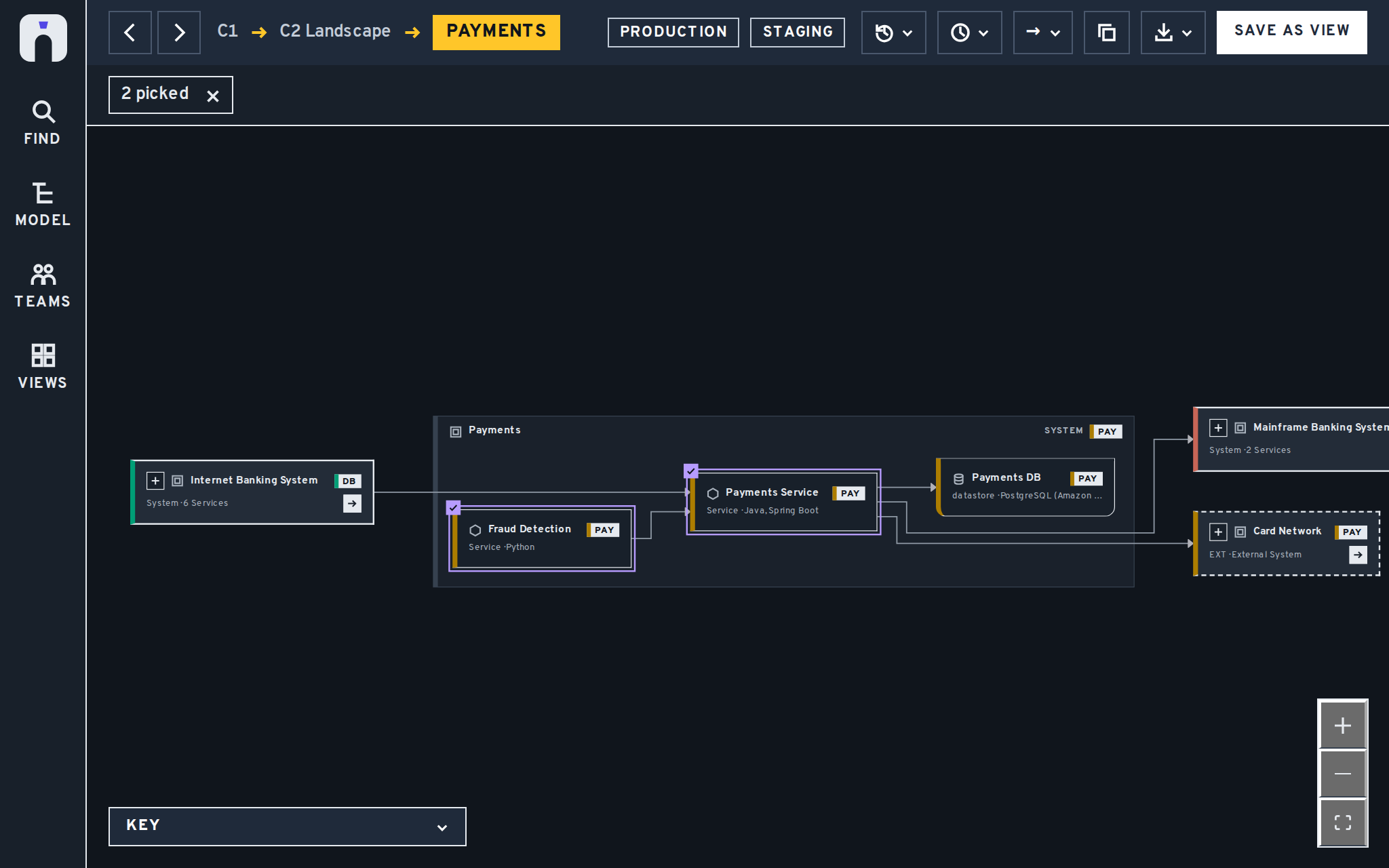
Picks are in the link too. Clear them with the × on the chip.
3. Download a picture
Section titled “3. Download a picture”Open Export in the location bar. Choose View as SVG or View as PNG, or once you have picks, Picks as SVG or Picks as PNG. The picture is styled as it is on screen.
4. Save it as a View
Section titled “4. Save it as a View”Select Save as View. Choose the Project, the Team’s folder of YAML, an id and a title. The dialog gives the screen as Saved View YAML, and as the MCP call that writes it.
Copy the YAML into the Project’s views.yaml and open a pull request. The viewer doesn’t store it anywhere. See Save a View for the rest.
Check it worked
Section titled “Check it worked”Open the copied link in a private window. It opens the same screen. On the demo, these two picks ↗ open as shown above.
If it didn’t
Section titled “If it didn’t”Save as View can’t save picks on a Deployment View, and the dialog says so. Clear the picks, or save from a Structural View.
With an agent
Section titled “With an agent”Paste the Save as View call to an agent. upsert_view writes the View into the Project’s YAML. get_view shows what a View resolves to.
Related
Section titled “Related”- Views
- Viewer URLs
- Export diagrams, for pictures in CI
Documents Archidocs v1.4.0, the latest release.