

Save a View
A Saved View is a diagram written into a Project’s files as a query over the Model. Save one when a question comes up often enough to deserve a link, and the Generated Views don’t answer it at a glance. See Views.
1. Start from the question
Section titled “1. Start from the question”Write down who the View is for and what it answers: “what does an Orders DB outage affect?”. That decides its level and selectors. Check first that a Generated View (c1, c2, c2/<system>, c3/<service>, deployment/<environment>) doesn’t already show it.
2. Build it in the viewer
Section titled “2. Build it in the viewer”Open the viewer (archidocs dev), get the screen to answer the question (open what needs opening, turn on a Lens), then use Save as View. It gives you the View as YAML. Or write it by hand.
3. Add it to the Project
Section titled “3. Add it to the Project”Paste it under views › structural in the Project’s views.yaml, keyed by an id unique among the Project’s Views:
structural: everything: title: Everything description: Every Element, with Shop and API open. level: c3 include: - element: shop with: descendants - customer - search - payment-gateway - payments-provider orders-db-outage: title: What an Orders DB outage affects description: The Services that depend on Orders DB, with the Impact Lens on. level: c2 include: - element: orders-db upstream: all exclude: - customer lens: impact: orders-db direction: upstream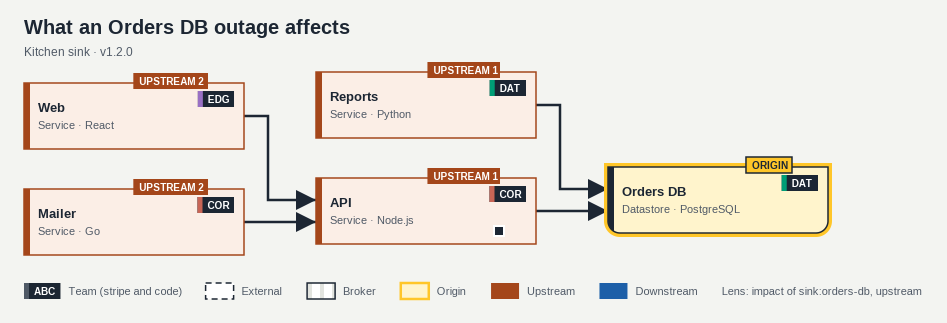
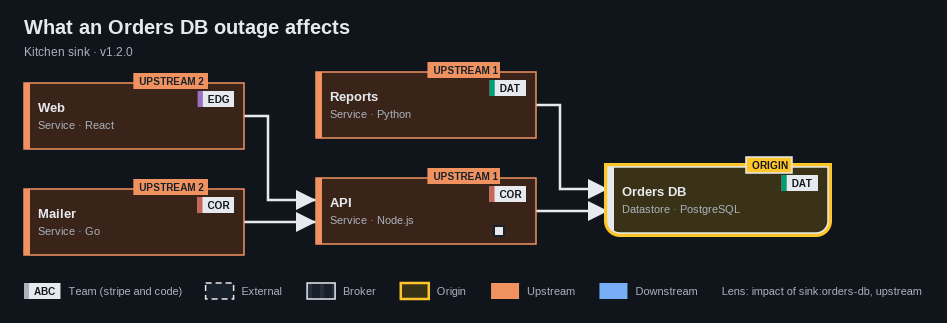
titleandlevelare required.includeselects Elements: an id,{element, with, upstream, downstream},{team},{tag}or{from, to, paths}. Without it, the View starts from every Element.excludetakes the same selectors and drops what they match.lensopens the View with a Lens on:{impact, direction},{team}or{path: {from, to}}.
Prefer selectors that follow the Model, such as upstream: all, over lists of ids: a Service added later then joins the View on its own.
4. Check it and share it
Section titled “4. Check it and share it”archidocs checkA View that resolves to no nodes is reported (empty-view), and so is a View too big to read (oversized-view). Once published, the View’s link is #/view/<project>:<id> in the viewer, and archidocs export draws it as a picture.
With an agent
Section titled “With an agent”upsert_view writes a View, and get_view shows what it resolves to.